
Stable Diffusion IC Light 教程,快速入门,使用AI给照片打光
Read the English SD webui IC_light official user guide here.
在这里可以阅读官方说明文档。
使用 IC_light 可以很方便地通过简单的提示词给图片打光。
快速安装:
从该链接(https://pan.baidu.com/s/1kb3rBi3MIG2Dl5b-DSiCyg?pwd=1111)下载整合包将内容粘贴至extensions文件夹内即可直接安装
截止2024年10月23日,该插件仍然在webui内核1.10.1,使用秋叶整合包v4.7一路更新过来的仍然正常工作。
手动安装:
安装本体:
使用秋叶启动器,在版本管理——安装新拓展的底部粘贴url完成初步安装,
可以通过粘贴该链接https://github.com/QodiCat/IC-Light-SD-WebUI来安装拓展。
安装模型:
完整的可用的插件目录大概是这样的:
IC_light_SD_webui
│ iclight_sd15_fbc.safetensors
│ iclight_sd15_fc.safetensors
│ iclight_sd15_fcon.safetensors
│
├─rmbg
│ .gitkeep
│ config.json
│ model.pth
│ model.safetensors
│ pytorch_model.bin
│
├─text_encoder
│ .gitkeep
│ model.safetensors
│ pytorch_model.bin
│ text_encoder_config.json
│
├─tokenizer
│ .gitkeep
│ tokenizer_merges.txt
│ tokenizer_special_tokens_map.json
│ tokenizer_tokenizer_config.json
│ tokenizer_vocab.json
│
├─unet
│ .gitkeep
│ diffusion_pytorch_model.bin
│ diffusion_pytorch_model.safetensors
│ unet_config.json
│
└─vae
.gitkeep
diffusion_pytorch_model.bin
diffusion_pytorch_model.safetensors
vae_config.json
main models: https://huggingface.co/lllyasviel/ic-light/tree/main
具体的文件链接:
https://huggingface.co/lllyasviel/ic-light/blob/main/iclight_sd15_fbc.safetensors
https://huggingface.co/lllyasviel/ic-light/blob/main/iclight_sd15_fc.safetensors
此处下载的放在models目录
rmbg:
https://huggingface.co/briaai/RMBG-1.4/tree/main
具体的链接:
https://huggingface.co/briaai/RMBG-1.4/blob/main/config.json
https://huggingface.co/briaai/RMBG-1.4/blob/main/model.pth
https://huggingface.co/briaai/RMBG-1.4/blob/main/model.safetensors
https://huggingface.co/briaai/RMBG-1.4/blob/main/pytorch_model.bin
此处下载的放在/models/rmbg文件夹里
vae,unet,tokenizer,text_encoder: https://huggingface.co/stablediffusionapi/realistic-vision-v51
具体的链接:
https://huggingface.co/stablediffusionapi/realistic-vision-v51/tree/main/text_encoder
下载此链接文件夹内所有文件放text_encoder文件夹里
https://huggingface.co/stablediffusionapi/realistic-vision-v51/tree/main/tokenizer
下载此链接文件夹内所有文件放tokenizer文件夹中
https://huggingface.co/stablediffusionapi/realistic-vision-v51/tree/main/unet
unet文件夹需要的文件
https://huggingface.co/stablediffusionapi/realistic-vision-v51/tree/main/vae
同理,全部下载
大陆用户无法正常访问将huggingface.co替换成hf-mirror.com即可
关于安装完成后却没有出现插件选项卡:
在启动器-高级选项-环境维护-重新安装Python组件中,输入diffusers==0.27.2,点重新安装,等待完成后重启即可
使用:
FC(使用提示词生成光照)
勾选Use FC,填写光照提示词并勾选光照方向即可,其他参数可选,使用默认参数即可
提示词sunset,选择right light,其他为默认参数

FBC(使用背景板生成光照)
提示词dawn,其他均为默认参数
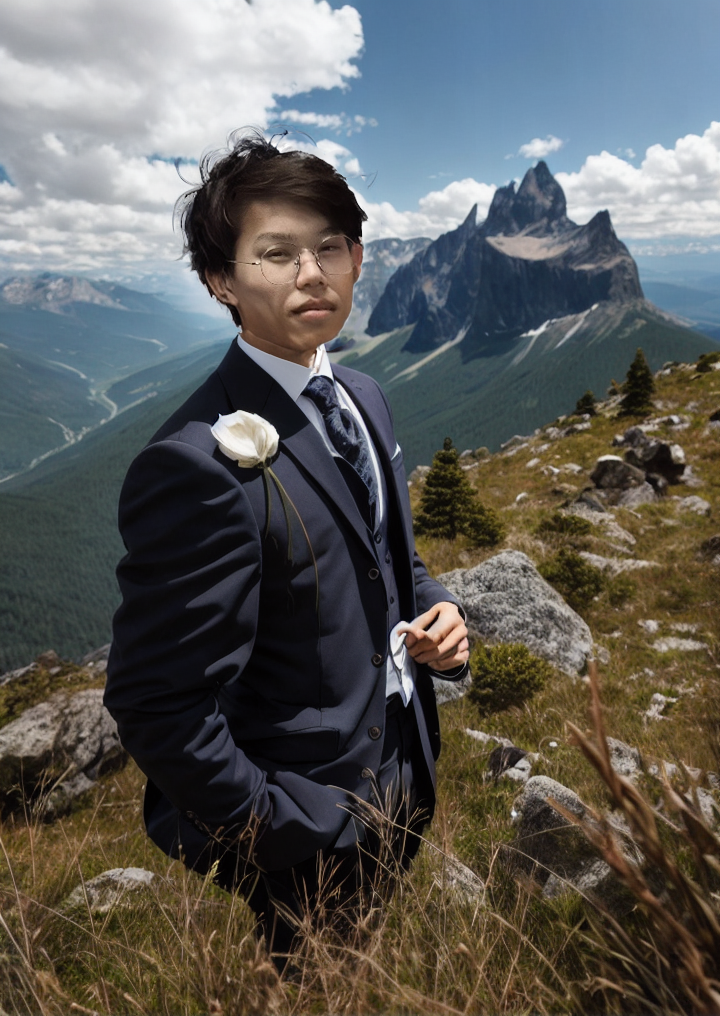


关于报错
Traceback (most recent call last):
File "C:\sd-webui\python\lib\site-packages\gradio\routes.py", line 488, in run_predict
output = await app.get_blocks().process_api(
File "C:\sd-webui\python\lib\site-packages\gradio\blocks.py", line 1431, in process_api
result = await self.call_function(
File "C:\sd-webui\python\lib\site-packages\gradio\blocks.py", line 1103, in call_function
prediction = await anyio.to_thread.run_sync(
File "C:\sd-webui\python\lib\site-packages\anyio\to_thread.py", line 31, in run_sync
return await get_asynclib().run_sync_in_worker_thread(
File "C:\sd-webui\python\lib\site-packages\anyio\_backends\_asyncio.py", line 937, in run_sync_in_worker_thread
return await future
File "C:\sd-webui\python\lib\site-packages\anyio\_backends\_asyncio.py", line 867, in run
result = context.run(func, *args)
File "C:\sd-webui\python\lib\site-packages\gradio\utils.py", line 707, in wrapper
response = f(*args, **kwargs)
File "C:\sd-webui\python\lib\site-packages\torch\utils\_contextlib.py", line 115, in decorate_context
return func(*args, **kwargs)
File "C:\sd-webui\extensions\IC-Light-SD-WebUI\process_fc.py", line 386, in process_relight
input_fg, matting = run_rmbg(input_fg)
File "C:\sd-webui\python\lib\site-packages\torch\utils\_contextlib.py", line 115, in decorate_context
return func(*args, **kwargs)
File "C:\sd-webui\extensions\IC-Light-SD-WebUI\process_fc.py", line 262, in run_rmbg
alpha = rmbg(feed)[0][0]
TypeError: 'NoneType' object is not callable
如果你在启动后初次使用遇到如上类似报错,不必惊慌,可以忽略并多次尝试生成图片,报错五到六次后便可以正常打光,如果仍然无法正常生成图片,建议检查是否某些选项出现错误、没有勾选等,然后自行搜索相关帮助
如果没有反应请尝试刷新页面后再试
其他错误我目前没有遇到,如果该篇教程浪费了你的时间,对于你没有任何帮助,非常抱歉!